Managed IT
Server to Cloud Migration for Dealerships: What Moves, What Stays and How It’s Backed Up
Which servers move to Microsoft 365 and Azure, what stays at the store, and who keeps the copy afterward.
Server to cloud migration moves a dealership’s email, file shares and app servers out of the building and into Microsoft 365 or Azure, keeps the network, PCs and shop equipment at the store, and backs up whatever moved. Helion Technologies scopes system changes as IT projects for car and heavy truck dealerships, and its backup and disaster recovery work keeps a separate copy of the systems a store runs on, from Microsoft 365 to Azure.
Last updated: November 25, 2026
Why Server to Cloud Migration Is Three Decisions, Not One
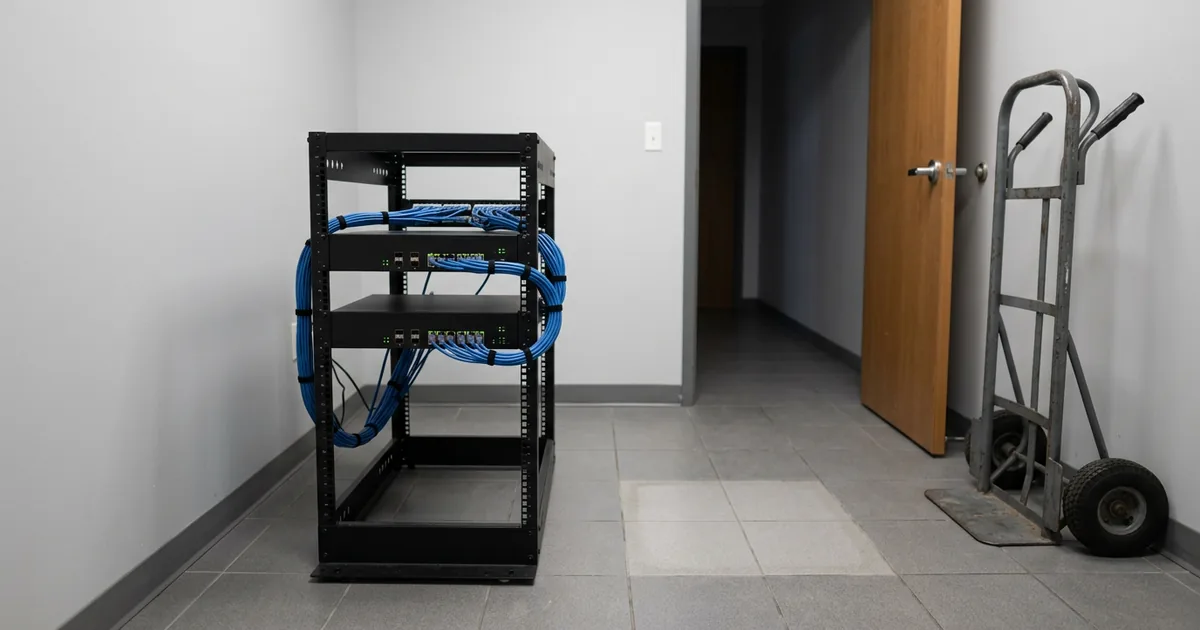
Picture the closet behind the parts counter. There’s a file server everyone maps a drive to, an accounting server tucked under a desk, and a box that handles everybody’s sign-ins. A small backup drive is plugged into one of them. It works fine. Lifting those servers out of the closet and into Azure is often a smart move. The risk is in what can get left behind. The server moves, the backup drive gets unplugged, and nobody sets up the copy on the other side until the day somebody needs a file back.
So treat the move as three decisions. What moves, and where it lands. What stays at the store. And how each piece gets backed up afterward. Erik Nachbahr, our founder, made the case for the cloud in an Auto Dealer Today article, writing that when office and email applications run on in-house servers, the IT staff responsible for them are “often limited by budget constraints, lack of time, and lack of expertise.” Our IT project management services scope a system change as its own project, separate from day-to-day managed IT for dealerships.
Moving the server is one decision. Moving the backup is another.
Sorted the way Microsoft sorts them
What Moves, What Stays and How It’s Backed Up
Microsoft’s Cloud Adoption Framework says each workload can be retired, retained, rehosted, replatformed, refactored, rearchitected, rebuilt or replaced. Five of those words fit the systems below. Read across a row to see where each one can go and what it needs once it gets there.
| What’s in the building | Where it can go | What it needs after the move |
|---|---|---|
| Email on an in-house server | Replace. Exchange Online in Microsoft 365. Microsoft names collaboration tools among the common cases for swapping a workload for software as a service | A cloud-to-cloud backup kept outside the tenant, since Microsoft keeps deleted email for 14 days by default, 30 at most |
| File shares | Replace. SharePoint and OneDrive in Microsoft 365. Microsoft connects each team in Teams to SharePoint sites for its file storage | The same separate backup, covering files and sites. A deleted SharePoint file waits 93 days in the recycle bins, then it’s permanently deleted |
| An accounting or app server | Rehost. The server moves to Azure with few changes. Microsoft’s own advice is not to rehost a workload that already has problems, because the move won’t fix them | Backup switched on for that server, with a schedule and a check that it ran. Microsoft puts verifying that backups are enabled on the customer |
| Sign-ins and the domain controller | Rebuild. Microsoft says it’s better to deploy new domain controllers in Azure than to migrate the old ones | Multi-factor authentication on every account, admin rights only for the people who need them, and new hires set up by job instead of copied from someone else |
| The old server nobody logs into | Retire. Microsoft’s word for decommissioning a workload that no longer provides business value, once nothing critical depends on it | A date to wipe it, or to keep it locked down and read-only for a set period, written into your Safeguards file |
| The DMS | The DMS provider’s project, if it offers hosting and the store chooses it. The provider runs the hosted servers | An answer in writing from the provider on what it backs up, how often, and how you’d get your own data back |
| The shop, the counters and the network | Retain. Diagnostic and OEM equipment, PCs, printers, scanners, the firewall and the circuits stay at the store. Microsoft says some workloads can’t move because of technical dependencies | A second internet line from a different carrier that takes over by itself, since everything that moved now arrives over the circuit |
Old servers come with a deadline of their own. Microsoft’s extended support for Windows Server 2016 ends in January 2027, and Windows Server 2012 and 2012 R2 reached the end of extended support in October 2023. A server running either one needs a plan, whether that’s an upgrade, a move or a retirement.
Around the store’s hours
How a Server to Cloud Migration Should Run Around Store Hours
Six habits keep a move from landing on top of a month-end close or a busy sales day. None of them are exotic. All six matter. Several come from the way our project managers run IT projects and from Rex Marchant’s post on maintenance windows, which says it was written so you could hold any provider to it, us included. Pick the window around each department’s real hours, test first, tell the store ahead and keep a way back.
Already in the Safeguards Rule
The FTC Safeguards Rule asks covered dealers to “Identify and manage the data, personnel, devices, systems, and facilities” the business runs on, and to “Adopt procedures for change management.” A server move changes several things on that list at once. Our FTC Safeguards checklist covers the rest of the rule.
The move list Six habits to ask any provider about
Count Every server and what runs on it
Walk the building and write down every server, what runs on it, who uses it and what else talks to it. The quiet ones count too. Microsoft’s guidance is to confirm a workload has no critical dependencies before you retire it, and you can’t confirm that without a list. Keep it with the IT asset records so it outlives the project.
No list, no plan.
Copy A tested restore before the cutover
Back up each server before it moves, then restore something from that backup and open it. Don’t skip that part. That copy is the way back if the cutover goes wrong, and you want to know it works before you need it. Rex’s guide to backup restore testing explains what a test should prove. Test before you trust it.
Know the way back first.
Sign-ins Multi-factor before anything goes live
Once a server lives in Azure or Microsoft 365, a username and password is the front door, and anyone on the internet can walk up to it. The Safeguards Rule already requires multi-factor authentication “for any individual accessing any information system,” unless the store’s Qualified Individual approves an equivalent or stronger control in writing, so put it on every account before the move. That includes managers. Give admin rights only to the people who need them.
The front door moved too.
Line Two ways out of every store
When the servers sat in the back room, a dead internet circuit was an annoyance. After the move, the same outage can take the files and the accounting system with it. Plan for that. Put a second line from a different carrier at every rooftop, set it to take over by itself, and test it by pulling the main cable on a slow afternoon. Then watch what the counter PCs do. Note what breaks.
The circuit is the server room now.
Cut over One rooftop first
Time the cutover around the hours each store keeps. In a group, move one rooftop first and the rest after it’s clean. Finish while somebody can still print a test page and open the DMS, at a time when the person doing the work and the person at the store who’d spot a problem can both pick up the phone, and not in front of the first customer of the morning. Then check again.
Check it before the store needs it.
Close out The old server, wiped or locked
The old server still holds a copy of everything it had on cutover day. Pick a date to wipe it properly, or keep it locked down and read-only for a set period, and write that decision into your Safeguards file. The rule’s disposal clause sets a two-year limit after the last date customer information is used for that customer, with exceptions. Update the network documentation when the drive is gone. Write it down.
Retired means wiped, on paper.
One Team Behind 2,000+ Dealerships
Managed IT and managed cybersecurity run as one team here, so the servers that moved, the sign-ins in front of them and the backups behind them can sit with one owner instead of several. Our IT projects get a project manager, a written plan with an owner on every line, and technicians on site for the cutover where the scope calls for it. Your own IT team can keep answering tickets.
Data in the Cloud Still Needs Its Own Backup
Erik put it plainly on a planning call with our team. “Just because your data is in the cloud doesn’t mean it’s backed up. You have to have cloud-to-cloud backup.” Microsoft keeps deleted mail and files for a while, then purges them. That’s a grace period. It isn’t a backup. A backup is a separate copy you control, kept outside the tenant, and Erik’s post on cloud-to-cloud backup for dealerships lays out Microsoft’s retention windows one at a time.
Servers that move to Azure need the same attention. Microsoft’s page on backing up Azure virtual machines describes backups running for the machines “selected for backup,” on “the backup schedule you specify.” The backup drive that sat beside the old server doesn’t come along. It stays in the closet. So after any move, check that a backup job exists for every server that moved, that the job actually ran on the schedule somebody set, and that something from it has been restored and opened by a person who knows what it should look like. Our backup and disaster recovery page shows who keeps which copy, and our managed Microsoft 365 page covers the tenant itself.
Offered isn’t switched on.
Microsoft
Microsoft’s shared responsibility guidance says that “Regardless of the type of deployment, you always retain the following responsibilities,” and the first one reads “Data – You’re responsible for your data.” Read Microsoft’s guidance.
The data stays yours in every cloud.
Microsoft Azure
Microsoft’s guide to shared responsibility for reliability says “Many Azure services that store data support backups,” and “You’re responsible for verifying whether backups are enabled and for configuring them appropriately.” Read the guide.
Azure offers it. You switch it on.
CISA
CISA’s #StopRansomware Guide addresses cloud-to-cloud backups directly. “Consider using a multi-cloud solution to avoid vendor lock-in for cloud-to-cloud backups in case all accounts under the same vendor are impacted.” Read the guide.
A second cloud, not the same one.
How a Cloud Migration Review Starts
-
1
Ask for the assessment
Fill in the short form for our complimentary IT and cybersecurity assessment. It’s no cost and no obligation, a review of your technology setup, security posture, vendor spend and where you stand on the FTC Safeguards Rule.
-
2
An IT expert looks at your systems
The review happens on site or remotely, whichever fits the store. Ask the reviewer to look at what still runs on a server in the building and what backs it up today.
-
3
Read the findings
The findings are documented in a written report, not only described out loud. Look for servers past support and data with no second copy.
-
4
Decide what comes next
Nothing has to be signed on the spot. You can plan the move yourself, compare cloud migration services from other providers or talk to us, with the findings in hand.
Common Questions
Thinking about a move?
Our complimentary IT and cybersecurity assessment reviews your technology setup, security posture, vendor spend and where you stand on the FTC Safeguards Rule, and the findings come back in writing. Already know what you need? Get a price quote.
What is server to cloud migration for a dealership?
Which dealership systems should stay on-site?
Is our data backed up once it’s in Microsoft 365 or Azure?
Who moves the DMS to the cloud?
Will moving our servers to the cloud save money?
Can we keep the old server around as a backup?
How long does a dealership cloud migration take?
Let’s look at what still runs on servers in your building. We’ll show you what we find.
Request a Complimentary Assessment →