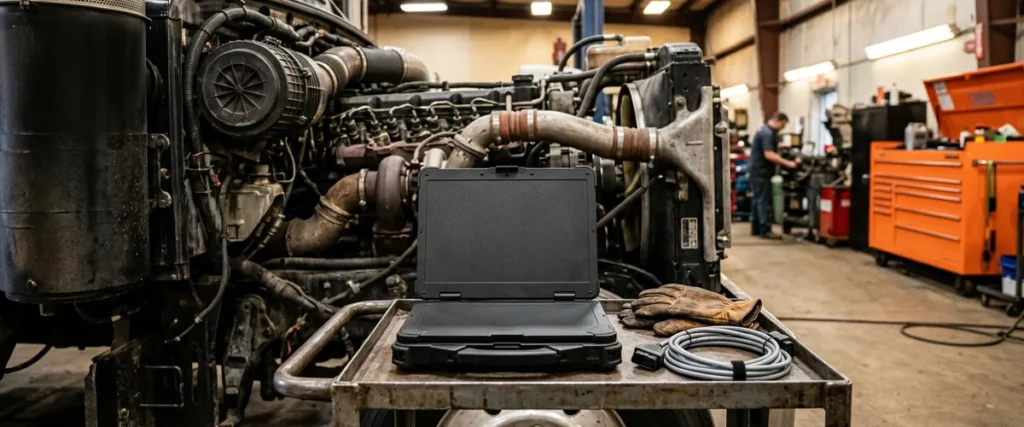

Securing OEM diagnostic laptops comes down to letting approved manufacturer software get elevated rights for its updates, then removing local administrator rights from the technician’s account. The updates keep running, and the technician no longer holds admin.
Last updated: November 12, 2026
A diagnostic laptop in the service department asks for an update, and the technician clicks yes. It installs because the technician’s account has local administrator rights, set up that way so nobody has to wait on IT. That’s a setup we run into in the service departments we work with, and it’s one reason dealership service department IT needs its own plan.
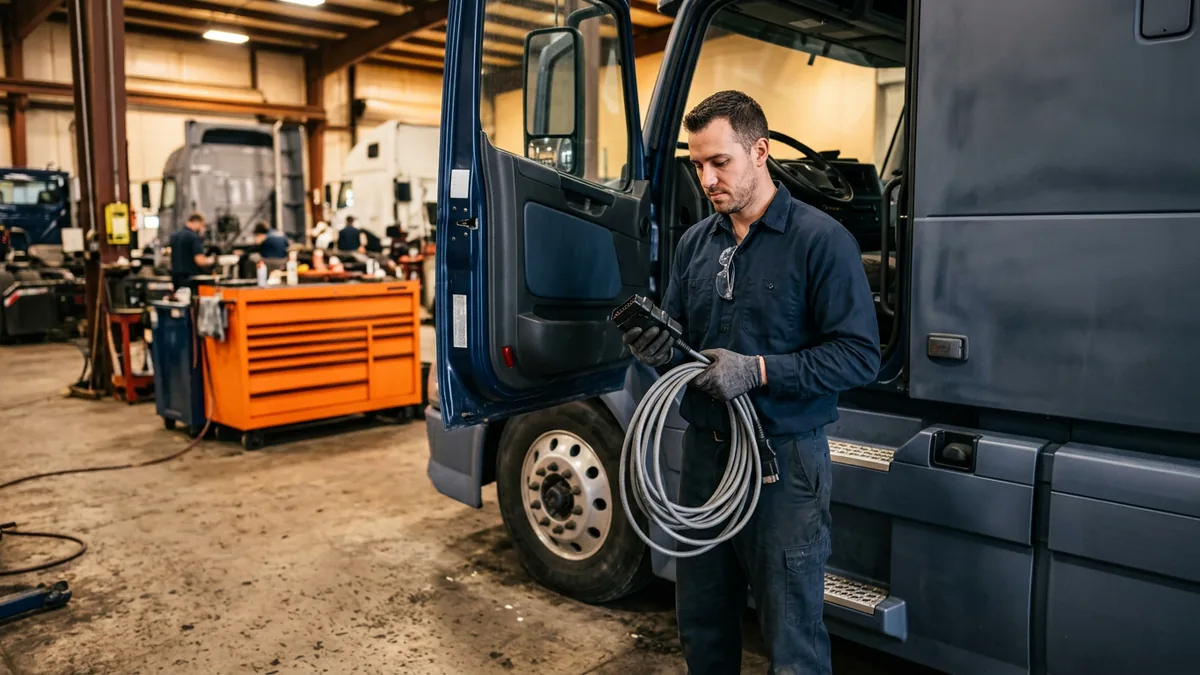
Why Do Dealerships Give Diagnostic Laptops Local Admin Rights?
Local administrator rights let the person logged in to a Windows laptop install, change and remove software without anyone else’s approval. Dealerships set OEM diagnostic laptops up this way because the manufacturers push updates often, and local admin lets the user approve and run each update when it arrives.
Scot McConnor, our VP of Technology Advisory, explains the setup this way. The manufacturers are always pushing out updates to those laptops, so dealerships set them up with local admin rights and the user approves and runs the updates whenever they need to. The catch, as Scot puts it, is that a user logged on to a PC with those rights can do anything they want on it.
GM, for one, addresses this directly. A 2020 GM TechLink article on Techline Connect updates and local admin rights says Windows requires admin rights to install, run and update the services Techline Connect uses, and that “Instead of giving dealership technicians full local administrative rights, GM has released an alternative process.” It also notes that “The actual implementation and maintenance requires 3rd-party privilege management software utilities.” GM recommends checking with the dealership’s IT provider about which package to use, and it doesn’t require dealerships to use the alternative. GM’s 2023 dealer infrastructure and security guidelines state that “All application updates and installations must be performed from an account with Local Windows Administrative privileges,” and they also include an alternative to full admin rights.
What Does Local Admin Put at Risk in the Service Bay?
On a recent call with our content team I laid out the problem this way. “A lot of people in auto dealerships and heavy duty truck dealerships have administrative access on their PCs to be able to install software, run software. So that creates a huge security vulnerability, ’cause that’s how they install these hacker tools inadvertently to get in.”
NSA and CISA listed improper separation of user and administrator privilege among the top ten cybersecurity misconfigurations in a 2023 joint advisory. They warn that “using an elevated account for normal day-to-day, non-administrative tasks increases the account’s exposure” and, with it, the risk to the network. A diagnostic laptop where the technician works all day in an account with admin rights fits that description. Does the OEM badge on the lid change anything? Not for us. We hold anything on your network to the same security standard, including devices a manufacturer provides.
I want to be fair to the shop here. Nobody in the bay is being careless, they’re doing what the setup asks of them.
| How the laptop is handled | What you get | What it costs you |
|---|---|---|
| Local admin for the technician | Updates install as soon as the user approves them | Anything the user runs can install with admin rights, hacker tools included |
| Admin removed, IT approves every update | Users can’t install software on their own | Techs wait, and IT carries a heavy burden |
| Laptops moved to a separate network, often guest Wi-Fi | The laptops are kept off the main network | Still not ideal, and the laptop keeps its local admin |
| Approved OEM software elevates by rule, local admin removed | Updates run with nobody approving them | Privilege management software, plus a rule to build and maintain for each application |
Can’t You Just Take Admin Rights Away?
You can, and it’s the right instinct. The challenge, as I said on that same call, is that “some programs, like tech tools and different things, require very, very frequent updates. So if you remove admin, now you’ve hamstrung people to be able to get work done. So it puts a heavy, heavy burden on IT.” Picture one IT person approving every OEM update on every laptop in the shop.
Manufacturers push updates for reasons, so I’m not telling anyone to skip them.
Early in my career, in a three-person IT department supporting 100 actuaries, I loaded a module onto the servers to make file storage easier, and the server went down. My boss fixed it. Then he told me, “That worked out for us. If it hadn’t, you’d have lost your job.” The lesson I took was to plan and test before touching anything, and admin rights on a shop laptop deserve the same care.
Removing admin without a plan just moves the pain.
How Does Automatic Elevation Work for OEM Software?
A rule recognizes one approved application and gives only that application elevated rights to run its update. The technician never receives admin, and with an automatic rule, nobody has to click approve.
Here’s how I described our fix. “We use tools that will automatically elevate permission for an application. So you can say, hey, when this heavy duty truck tech tool needs to get an update, you don’t have to give the person admin. We can set up a rule that it’ll automatically elevate the permission just to install that tool.” Scot describes the same idea with a privileged access management tool that allow-lists the OEM software, so when an update needs to run, the tool recognizes the software and the update runs without anyone doing anything. Then the local admin rights come off those PCs, which he says closes a huge security hole.
Microsoft’s guidance for moving users from administrator to standard user works in the same order. Creating elevation rules is its third phase and removing local admin rights is its fourth, and its example strategy for standard users is automatic elevation for defined rules.
The sequence for a service department runs like this.
- Find every diagnostic laptop, including the ones nobody wrote down. An IT asset inventory turns that from a hunt into a lookup.
- List the OEM software on each one, and which pieces need elevated rights to update.
- Write a rule for each application so that software, and only that software, elevates.
- Run a real update on a test laptop and confirm it installs with nobody approving it.
- Take local admin off the technician’s account.
- Keep checking, because OEM software changes with every update and a new tool needs its own rule.
Elevate the app, not the person.
What About Personal Laptops and Other Unmanaged Shop Equipment?
Personal laptops are the other half of it. As I said on that call, “We still see dealers bringing in, you know, having technicians bring in personal laptops, and then they’re circumventing all of the security measures as well. So you might think you’re on the right side of saving money on, you know, having people bring in these devices, but one data breach could, you know, wipe out all those received savings.”
One of our security leads put service techs at the top of the list of the most forgotten users, and said they’re just unmanaged. An unmanaged device is one nobody is patching or monitoring, so nobody can say what’s installed on it.
That’s why we hold the shop to one standard. OEM laptops and anything else on the network get the same security standard as every other device, and that’s the standard behind our cybersecurity services for dealerships.
What Should You Fix First?
These are the situations I’d look at first.
- Technicians log in as local admins on the diagnostic laptop. Fix this first.
- Personal laptops are plugged in or joined to the shop Wi-Fi.
- Laptops sit on guest Wi-Fi as a stop-gap and nobody has a date for what comes next.
- Nobody can say how many OEM laptops the store owns, let alone what’s installed on them.
- Admin rights are already gone and updates run by rule? Then you’re in good shape.
Bias disclosed, we benefit when you call us. If your laptops are already managed, admin-free and current, you don’t need us for this one. And if you’re parked on a separate network for now, that’s a stop-gap and not a finish line. Our truck shop Wi-Fi coverage page covers the network side of the shop, but the laptop still needs fixing.
Where Does Co-Managed IT Fit?
If you have an IT person, they stay in charge. Helion Technologies has worked only with automotive franchised and heavy truck dealerships since 1997, and on co-managed IT our team adds depth around your IT person instead of replacing them. Elevation rules take the repeat work off their plate, because nobody has to approve every OEM update by hand. As I told our content team, “it gives you security, but it also vastly reduces the workloads.” That’s my opinion, not a percentage.
What Dealers Ask About Shop Laptop Security
Can a technician still do the job without admin rights?
Does the manufacturer actually require local admin?
Is a separate guest Wi-Fi network good enough?
What does the FTC Safeguards Rule say about all this?
How would we find out whether a shop laptop is a weak spot?
Do personal laptops in the bay really matter that much?
If you’re not sure how the laptops in your service department are set up, start with our complimentary IT and cybersecurity assessment. We’ll review your current technology, your security posture, and what you’re spending across vendors, and put what we find in writing. It costs nothing.
Updates should run. Admin shouldn’t.